


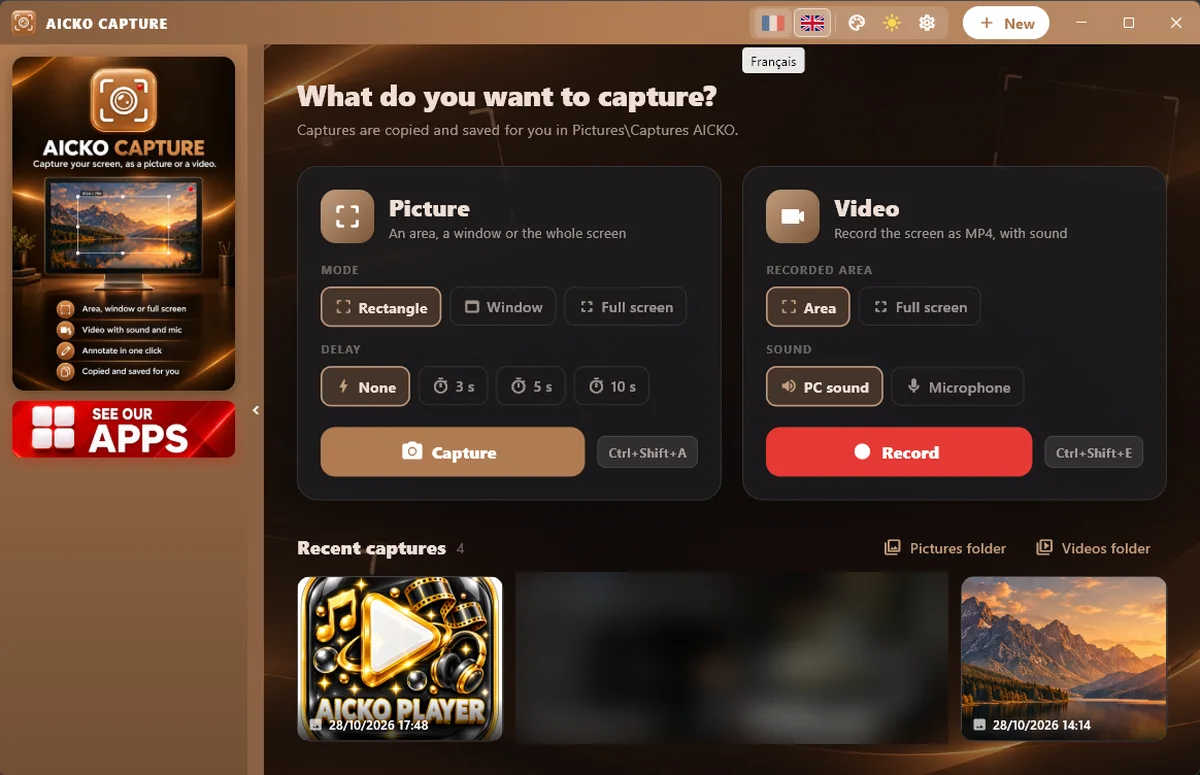
AICKO CAPTURE is free screen capture software for Windows 10 and 11. It saves a screenshot as an image or records the screen as an MP4 video, and it includes an editor to annotate, highlight and crop.
It aims to be simple, with only the options people use most. The interface is in French or English. It is meant for students, parents and teachers who want a clear picture of what is on the screen without learning a complex recorder.

Get AICKO CAPTURE
At a glance
- Platform: Windows 10 and 11
- Price: free
- Capture: image or MP4 video
- Editor: annotate, highlight, crop
- Sound: computer and microphone
- Interface: French or English
The problem this screen capture software solves
Students and parents often need to show something on the screen: an error message, a step in an online class, a graph that will not print. A plain screenshot is not always enough, and recording a short video can be complicated. AICKO CAPTURE covers both tasks in one program.
What AICKO CAPTURE offers
- Capture an exact area, a window or the whole screen.
- Copy the capture to the clipboard, or right-click to save it as a file.
- Save images as PNG or JPG.
- Record the screen as an MP4 video, with a red frame around the recorded area and a bar that shows REC and a timer.
- Pause and resume a recording.
- Record the sound of the computer and your microphone.
- A keyboard shortcut to start a capture quickly.
- An editor to annotate, highlight and crop.
The video engine is installed with the program, so there is nothing else to download. On a computer that supports hardware capture, a full HD recording runs at 30 frames per second.
Who it is for
- Students who need to document a problem or a lab step in a report.
- Parents who help a child with a website or a device setting.
- Teachers who record a short explanation to share with a class.
A short example: a student wants to show a teacher where a step went wrong in an online exercise. They capture the page, circle the line with the highlight tool, crop the margin and paste the picture into an email. For a longer problem, they record the screen while talking through the solution, then share the MP4 file.
The red frame around the recorded zone makes it clear what will appear in the video, which avoids sharing a window by mistake. The REC bar sits above the zone, so you always know how long the recording has run. Captures can be pasted directly into a document or an email, and the editor keeps the result clean for a report.
Getting started
- Download AICKO CAPTURE for Windows 10 or 11 using the button on this page.
- Start the program and choose image or video.
- Drag over the area to capture, or select a window.
- For a video, press the record button and watch the red frame and the timer.
- Open the result in the editor, add arrows or a highlight, crop it and save.
How it supports math study
Capturing a solved example is a quick way to build a revision sheet. Take a screenshot of a diagram from our geometry math pages, add arrows to the parallel sides, and paste it into your notes. For a longer explanation, record a short video of yourself solving an equation on screen, then compare it with the steps in our math lessons. The math glossary helps you label each part.
Frequently asked questions
What is a simple screen capture software for Windows?
AICKO CAPTURE is free screen capture software for Windows 10 and 11. It takes screenshots of an area, a window or the screen, records MP4 video, and includes an editor to annotate, highlight and crop.
Can AICKO CAPTURE record video with sound?
Yes. It records the screen as an MP4 video, with the sound of the computer and the microphone. A red frame shows the recorded area, and a bar displays REC and the elapsed time.
Can I pause a recording?
Yes. You can pause and resume a recording, and the pieces are joined into one video at the end. This is handy when you need to prepare the next step of an explanation.
Can I edit a screenshot after capturing it?
Yes. The built-in editor lets you annotate, highlight and crop. You can also copy the capture to the clipboard at once, or right-click to save it in a folder of your choice.
